
Purchase
Icon Map Pro is licensed in the following ways:
- Usage-based : Unlimited users and based on the number of times data is loaded into the visual
- Per user : Each user requires their own license to edit or view reports.
- Enterprise: Unlimited usage for all users on a Fabric capacity or across the enterprise.
You can find pricing and further details on the plans above here.
Usage-based licenses are purchased via the Icon Map customer portal. You can find instructions here.
Per user licenses are purchased via the Microsoft AppSource marketplace following the process below. Further information can be found in our purchasing FAQ.
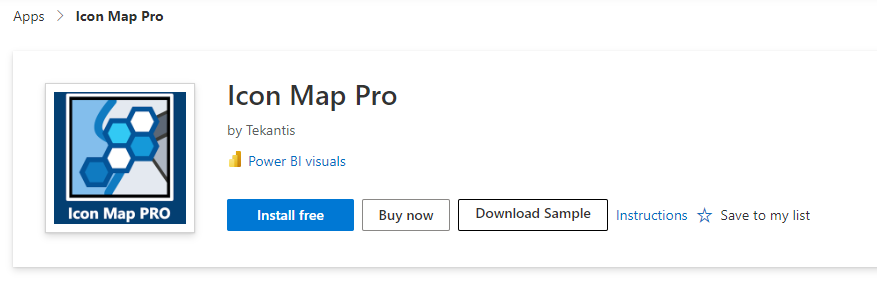
To purchase Icon Map Pro user licenses navigate to Icon Map Pro on Microsoft AppSource and click the "Buy Now" button.
Plan
Select the appropriate plan for the number of users you wish to purchase.
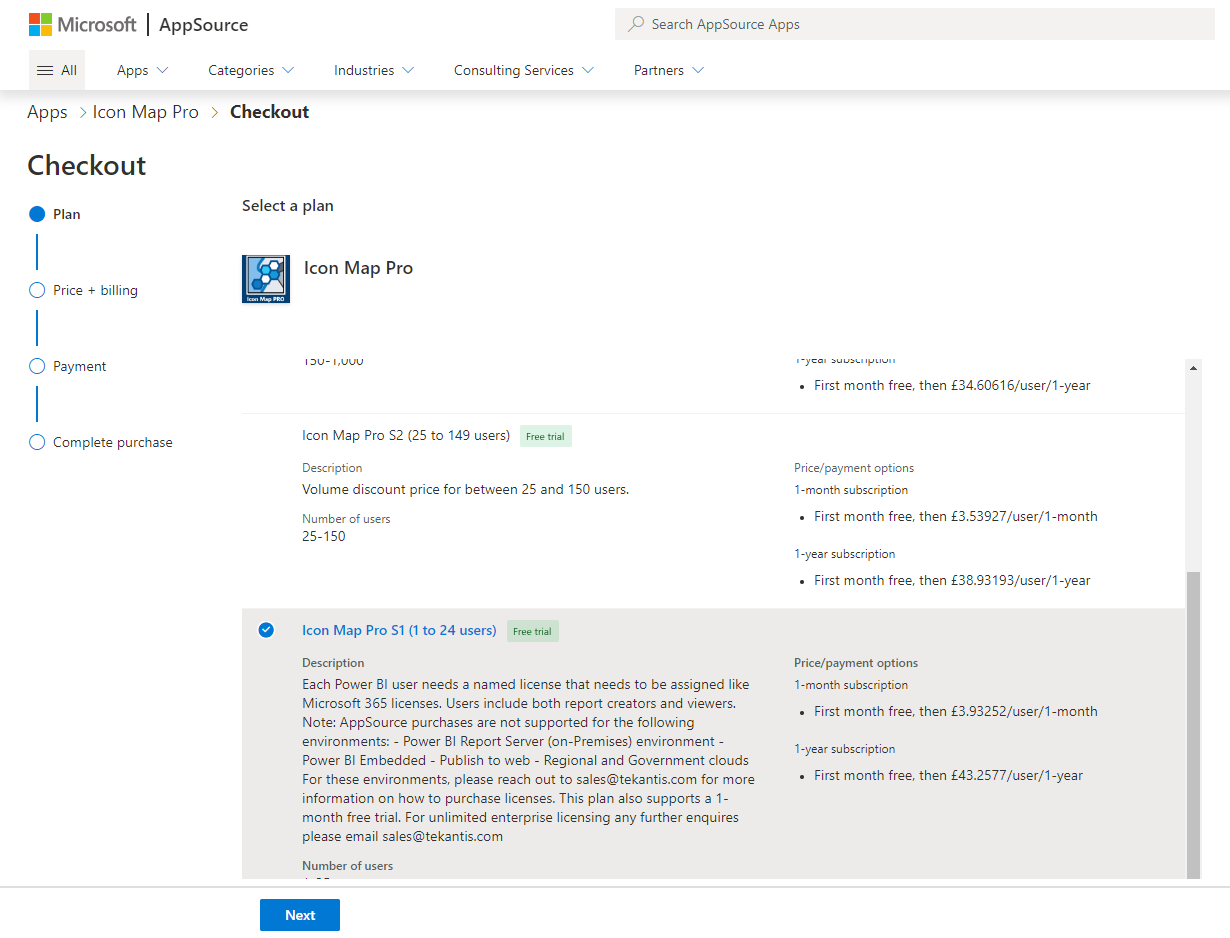
and click "Next".
Price + billing
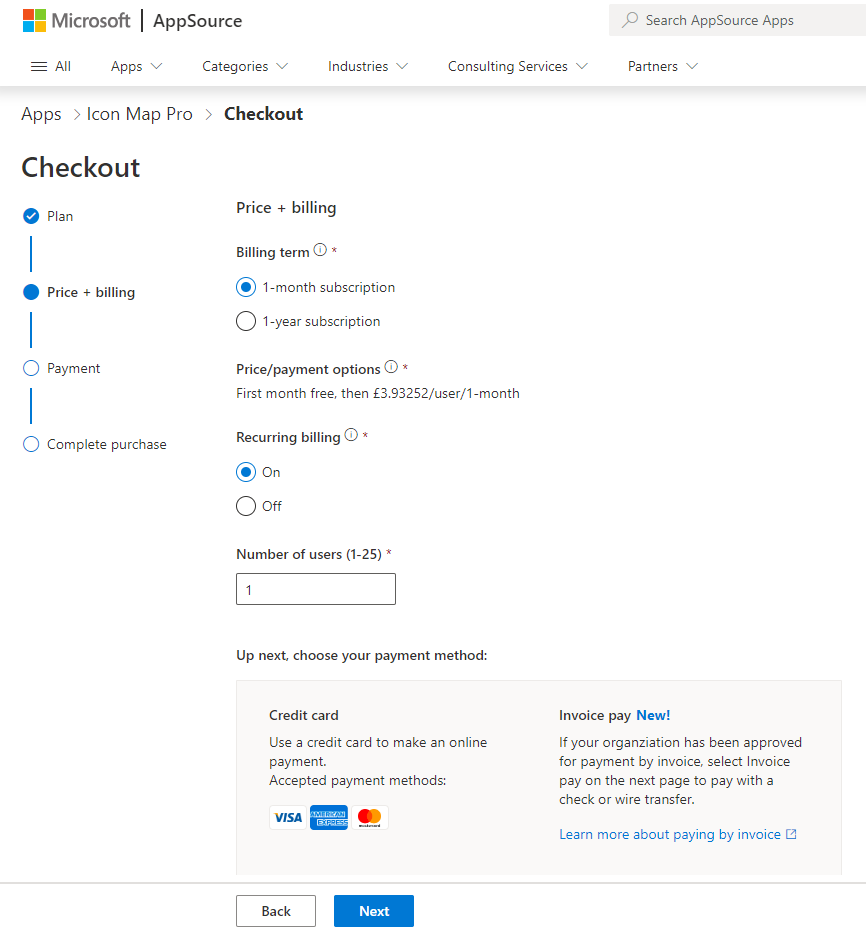
Then select whether to pay monthly or annually.
Payment
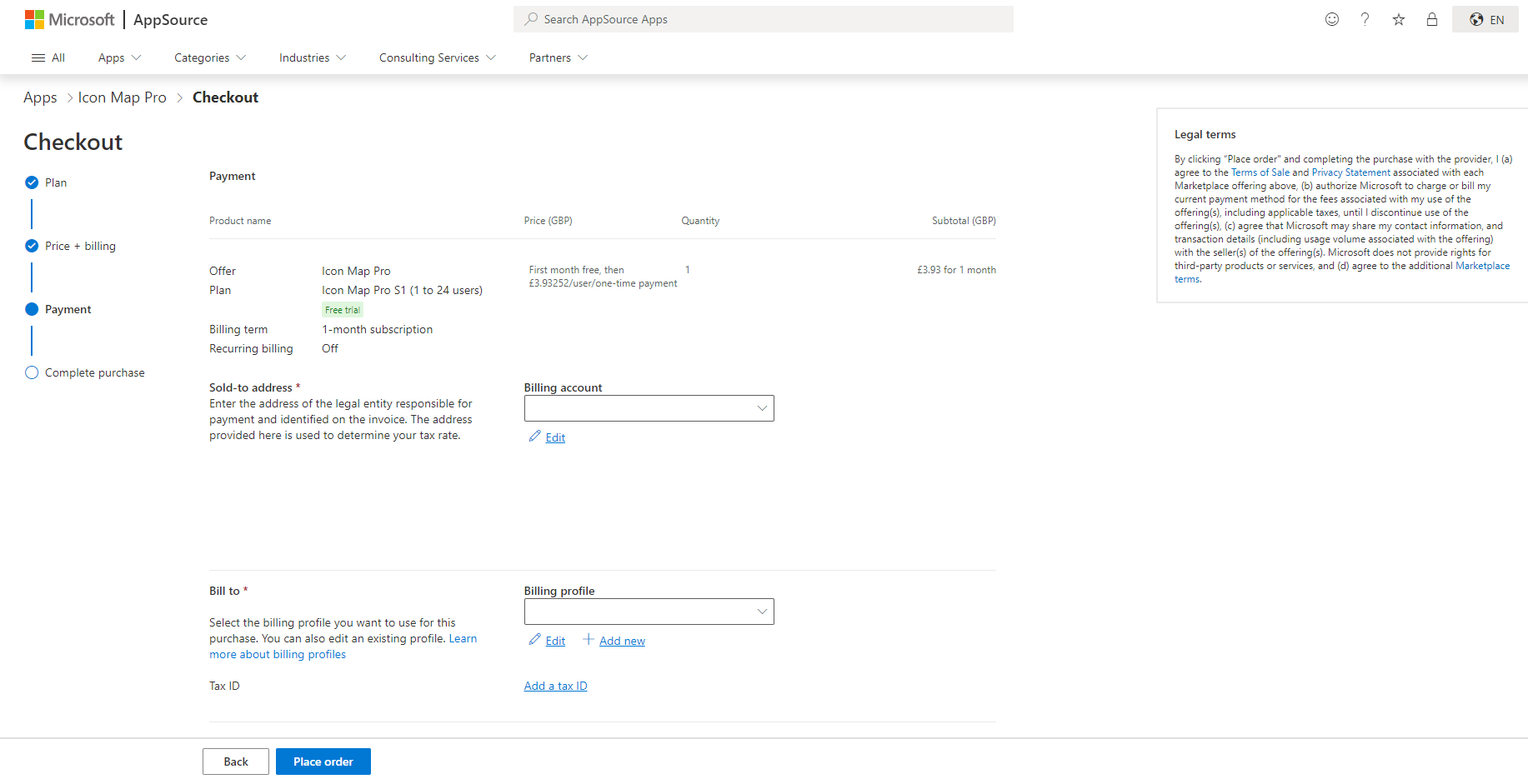
Complete your payment details, and click "Place Order". The default payment method is by credit card. If you wish to pay via invoice then this may be possible to set up with Microsoft, please see our purchasing FAQ for more details.
Complete purchase
You should then receive a confirmation of your order.
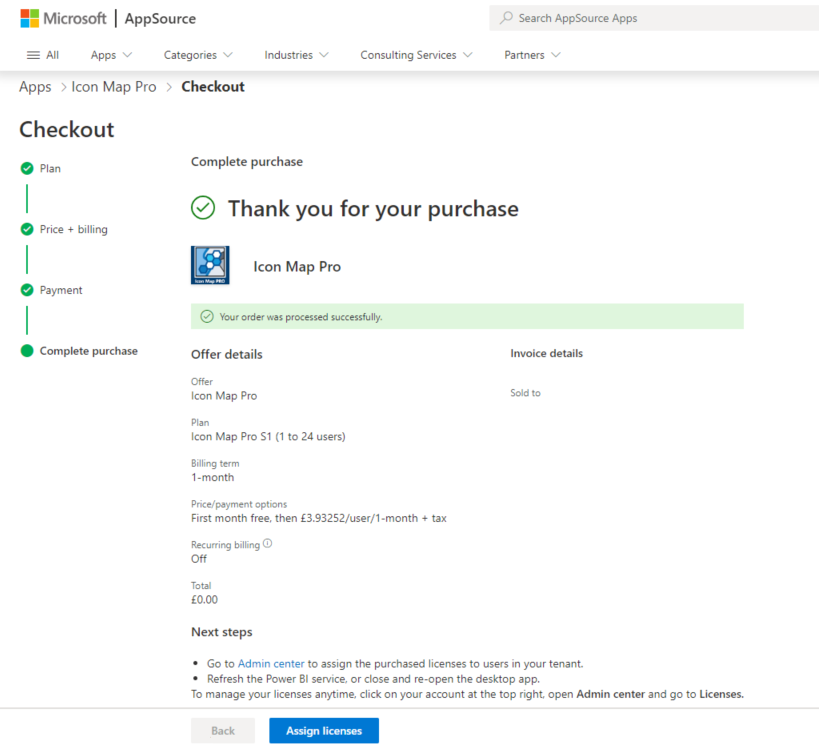
Once purchased you need to assign the licenses to users in the Office 365 Admin center. Clicking the Assign licenses will take you to the appropriate page. You may need to speak to an administrator to perform this action.
Assign Licenses
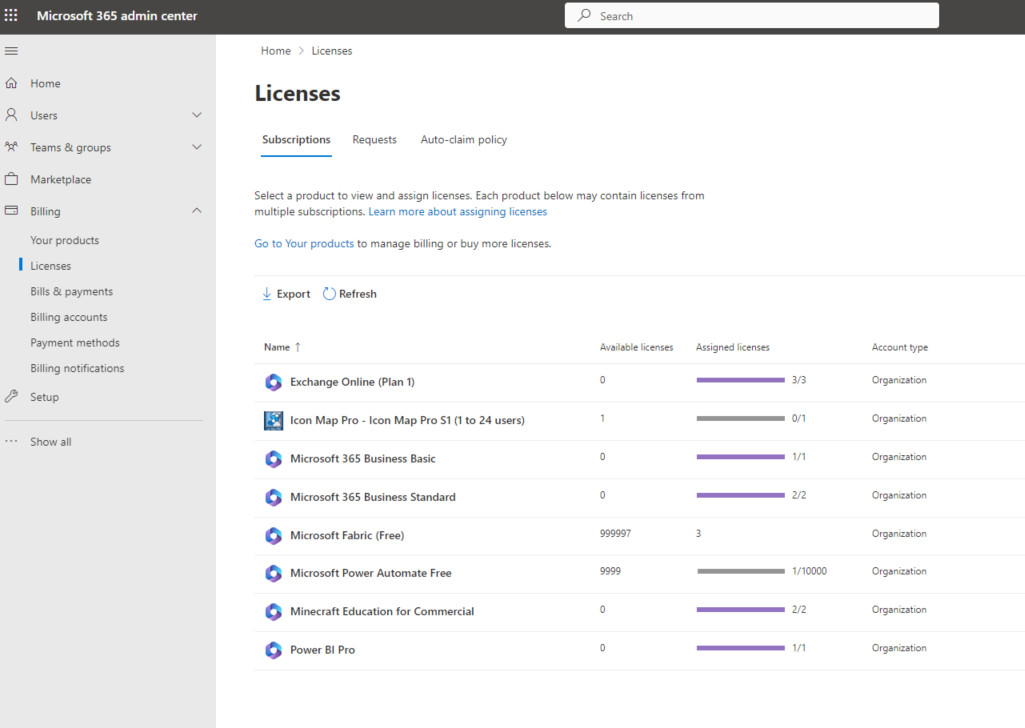
Click on the Icon Map Pro entry to start the process of assigning licenses.
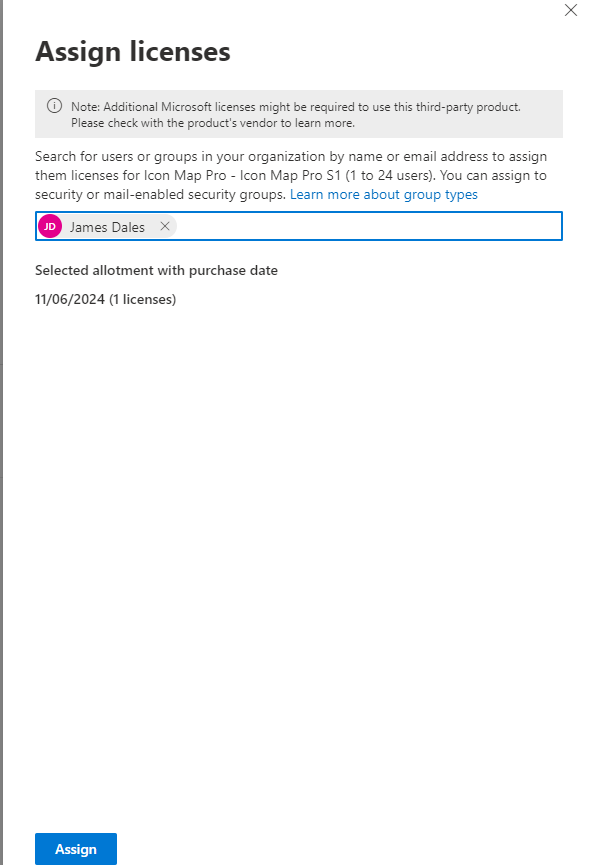
Enter the email address or group names to assign licenses to, then click the "Assign" button.
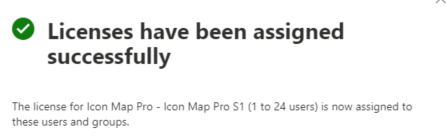
Once assigned, you may need to restart Power BI Desktop, or log in and out of the Power BI service.